
Before setting up MFA with OTP, ensure you have the following:
Authenticator Application: Install an authenticator app on your mobile device. Supported applications include:
MyMediabox Account: Ensure you have an active MyMediabox user account.
Enabling MFA with OTP
Login to MyMediabox: Access your account using your email and password.
MFA Enrollment Prompt: Upon login, you will be prompted to set up MFA. This is a mandatory step to enhance account security.
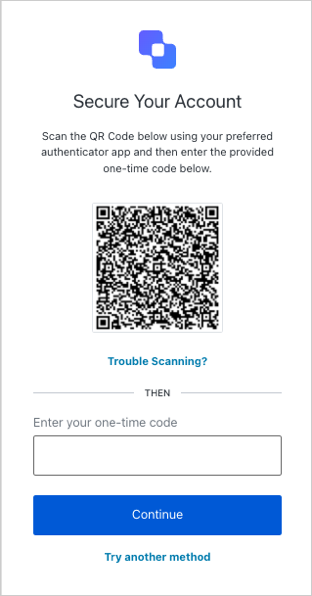
Scan QR Code:
Open your chosen authenticator app.
Use the app to scan the QR code displayed on the MyMediabox MFA setup page.
If you're using a mobile device and cannot scan the QR code, an enrollment code will be provided. Manually enter this code into your authenticator app.
Enter Verification Code:
After scanning the QR code or entering the enrollment code, your authenticator app will generate a 6-digit OTP.
Enter this OTP into the MyMediabox prompt to complete the MFA setup.

Logging in with MFA
Access MyMediabox: Navigate to the MyMediabox login page.
Enter Credentials: Input your email and password as usual.
OTP Prompt:
After entering your credentials, you'll be prompted to enter a 6-digit OTP.
Open your authenticator app to retrieve the current OTP.
Enter the OTP into the prompt to complete the login process.
Troubleshooting
Lost or Changed Device:
If you've lost access to your authenticator app or changed devices, contact MyMediabox Support to reset your MFA settings.
Time Synchronization:
Ensure your device's time is synchronized correctly. An incorrect device time can lead to invalid OTPs.
Multiple Devices:
If you use multiple devices, ensure that only one device is set up with the authenticator app to avoid confusion.